

MoEngage × TikTok Ads
The MoEngage and TikTok Ads integration allows MoEngage users to add user data to TikTok Ads for delivering advertisements based on behavioral triggers and segmentation.Use Cases
Integrating TikTok with MoEngage helps you solve the following use cases:- Enhanced user engagement and conversions : You can target high-value users via multiple channels to drive purchases or engagement.
- Re-engagement of less responsive users : You can target users who are less responsive to other marketing channels by showing them targeted display ads based on their past behavior.
- Optimized advertising spend : You can create suppression audiences to prevent users from receiving advertisements when they’re already loyal consumers of your brand.
- Efficient new user acquisition : You can create lookalike audiences to acquire new users more efficiently.
Integration
- TikTok ad account : To use this integration, you must have an active advertising account with TikTok.
- TikTok Ads is part of the Connected Segments add-on. Contact your dedicated MoEngage customer success manager (CSM) to enable it for your account
Step 1: Connect TikTok on the App Marketplace
To get started, connect your TikTok Ads Advertiser account(s) to your MoEngage workspace.
- On the left navigation menu in the MoEngage UI, click App marketplace.
- On the App Marketplace page, search for TikTok Ads.
- Click the TikTok Ads tile.
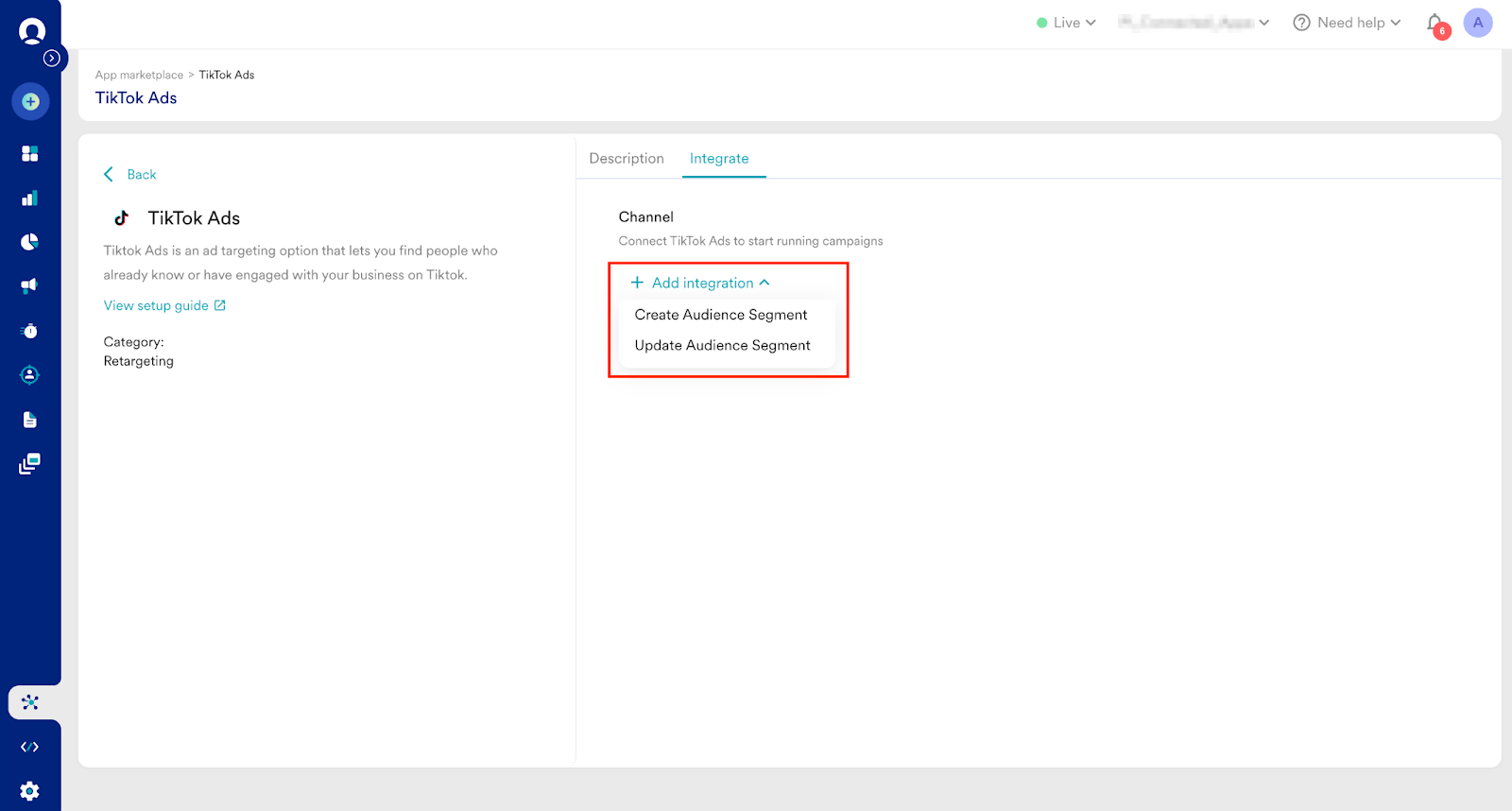
- On the TikTok Ads partner page, click theIntegrate tab.
- Click the
 arrow and then select one of the following options:
- Create Audience Segment
- Update Audience Segment
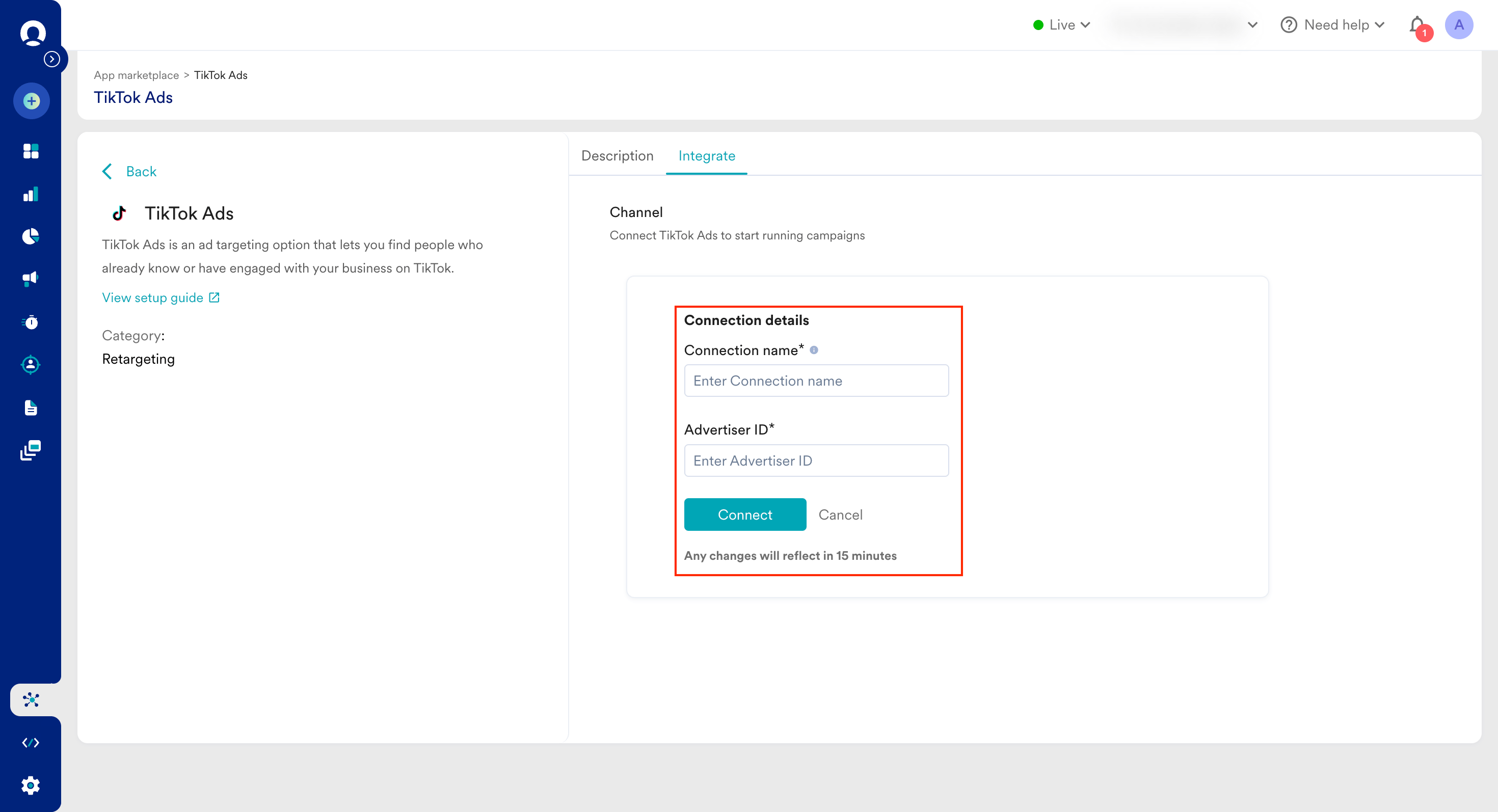
- Click Connect. Your TikTok connection is now integrated.
Note: Repeat this step for each TikTok connector.
Step 3: Create a Campaign on MoEngage to Sync Audiences to TikTok Ads
To create a connector campaign on MoEngage, perform the following steps:- On the left navigation menu in the MoEngage UI, click Engage , and then click Campaigns.
- On the All campaigns page, click + Create campaign.
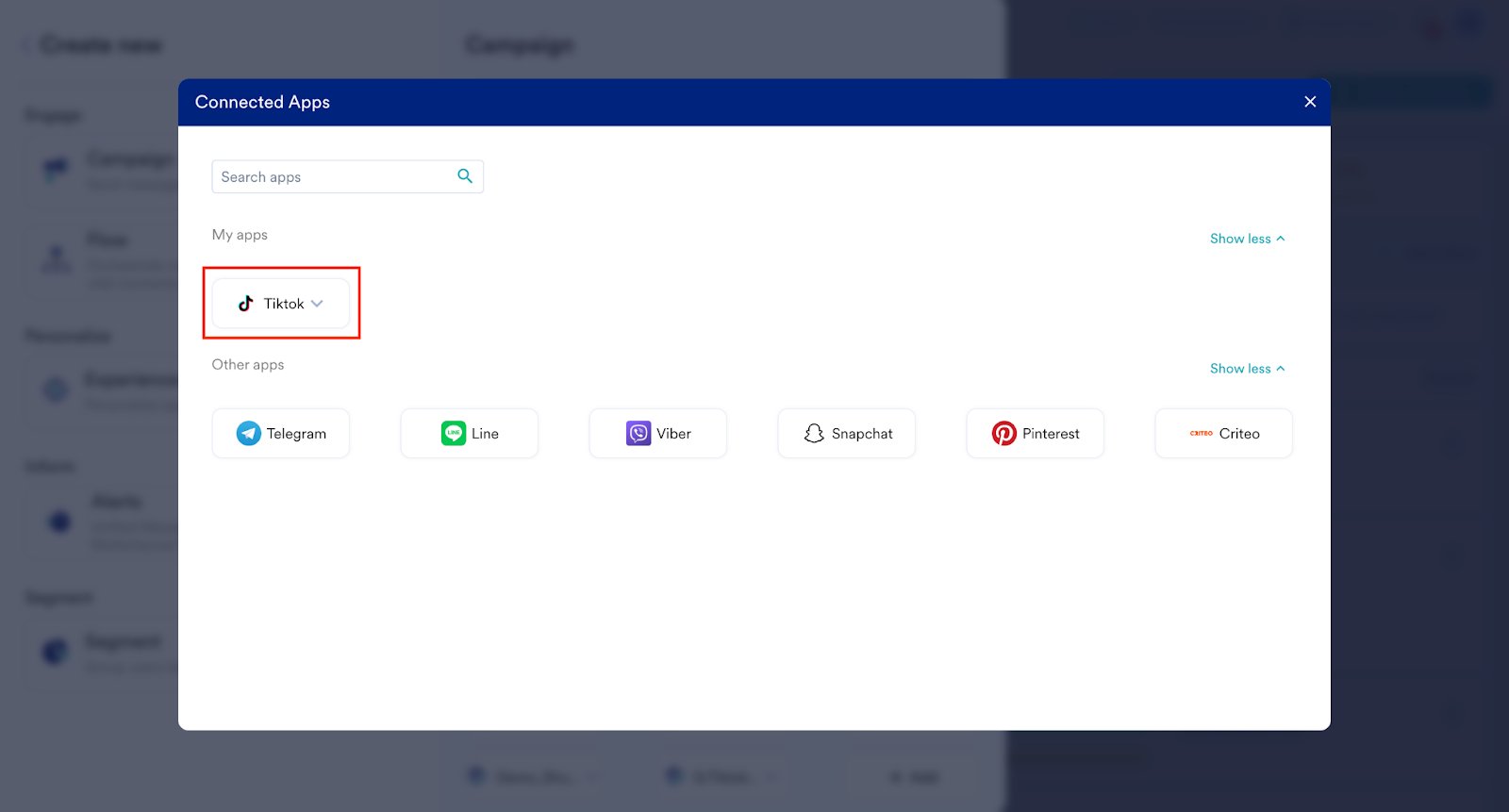
- On the Create campaign dialog box, under Connected Apps , click TikTok and then click the most suitable delivery type.
- Under Select audience , click Filter users by.
- On the User property tab, select the user segment for Pinterest syncing. You can combine this with other segment criteria.
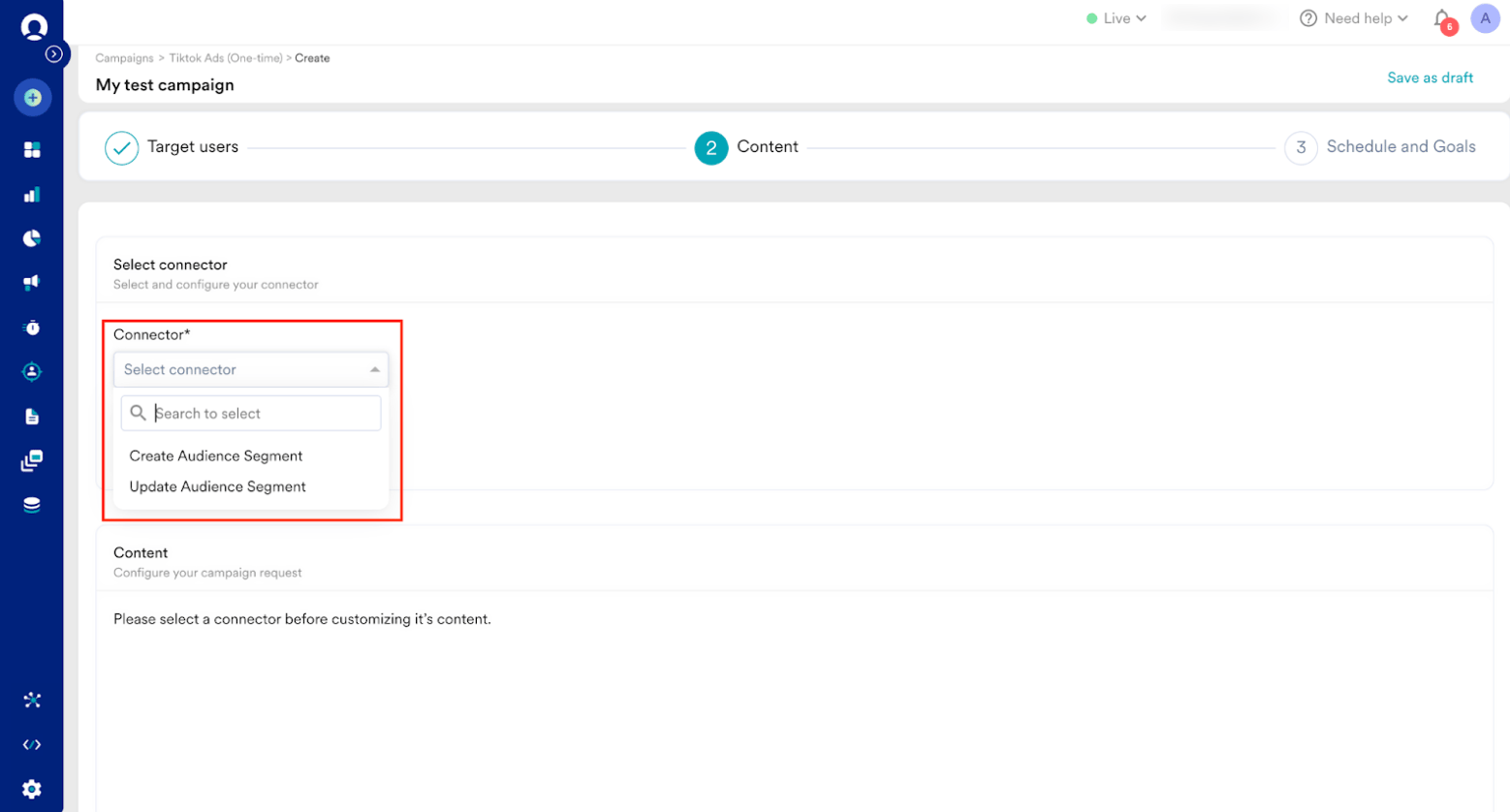
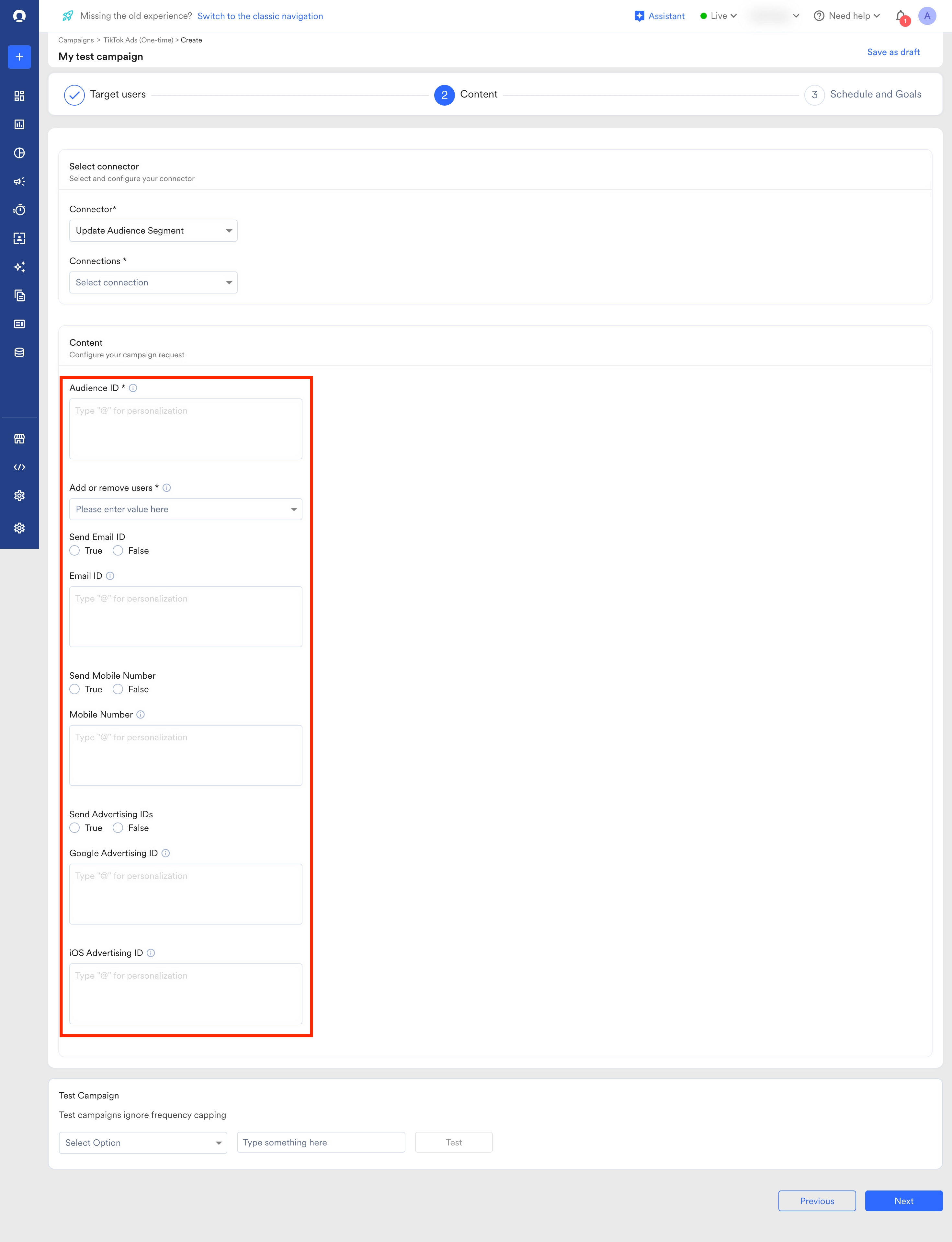
- In step 2 of the campaign, Content , select the pre-configured connectors and specify the content you want to send out. Enter the following details:
Sync to an Existing Audience on TikTok
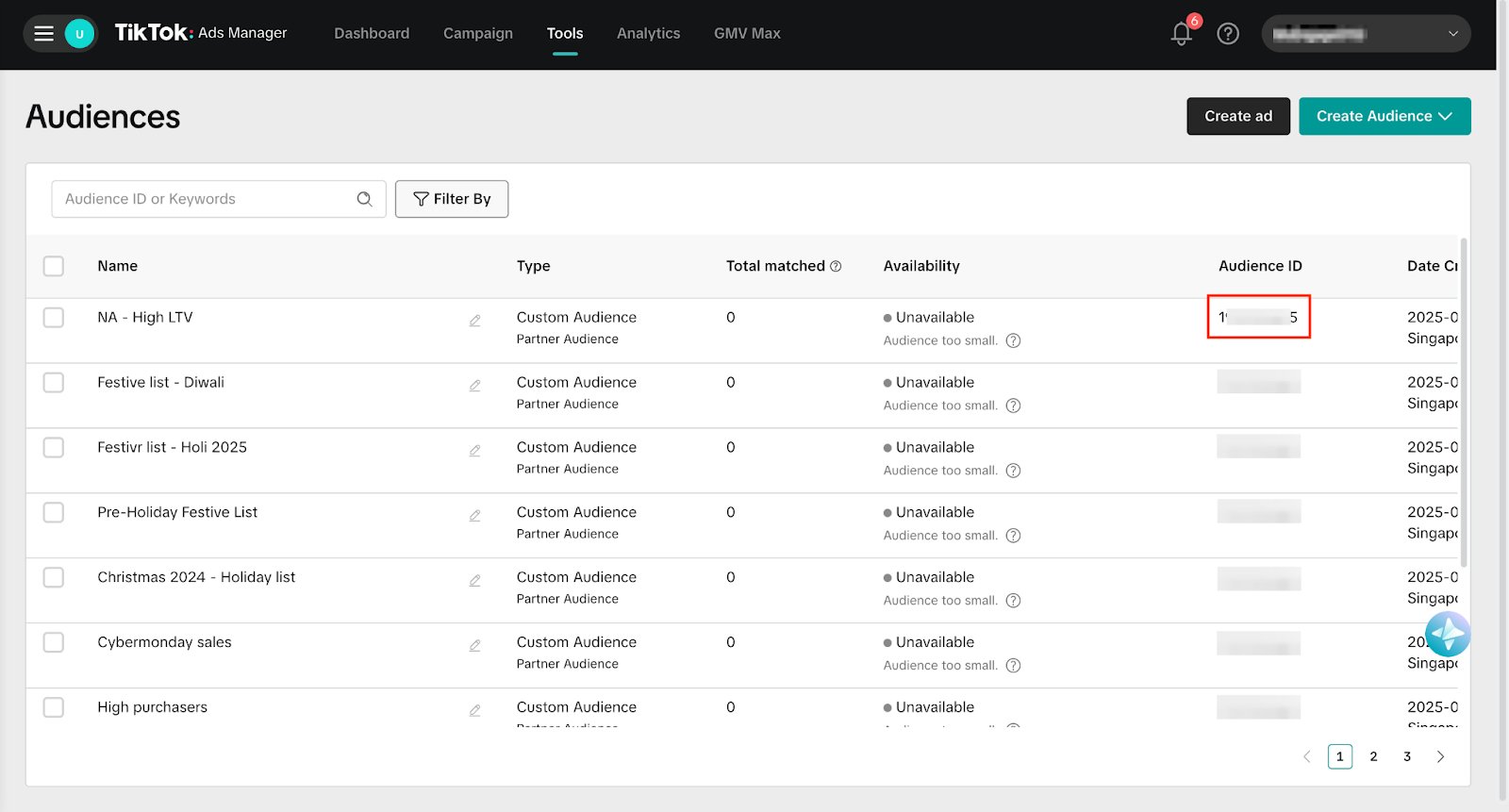
If you want to add/remove users from an existing Audience on TikTok, you must provide that Audience’s ID. You can view the audience on TikTok by going into your TikTok Audience Manager:- On the Header Navbar, select Tools.
- Under Audiences > select Audience Manager.
- View your Audience ID by locating your desired Audience.
- From the Audience ID column, note the Audience ID.
Create a New Audience on TikTok Ads
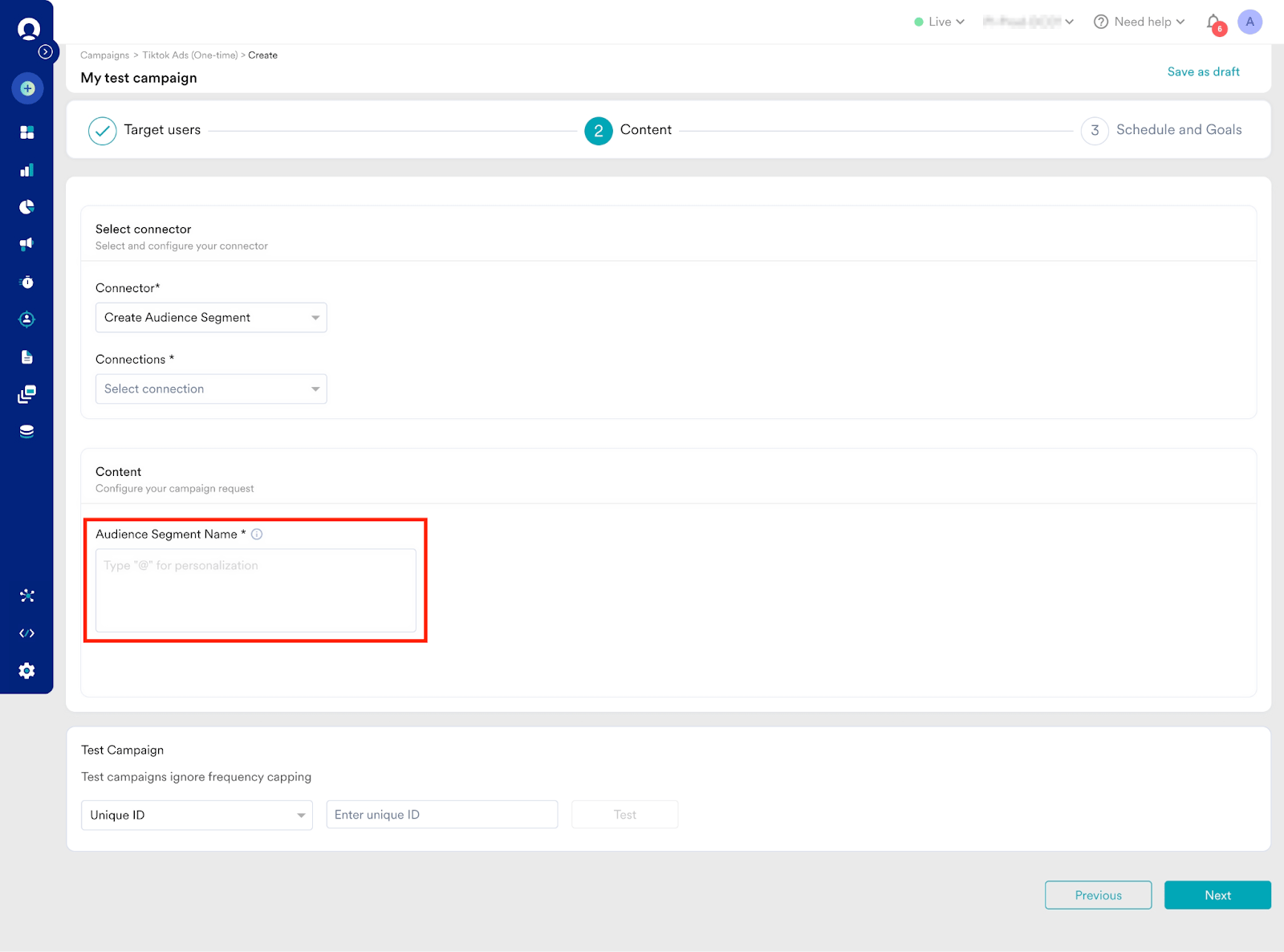
To create a new Audience on TikTok, you can use the Create Audience Segment connector and follow these steps:- Select the Create Audience Segment connector and the connection you created.
- Enter the Audience Segment Name and other required details.
- Run a test campaign and observe the response.
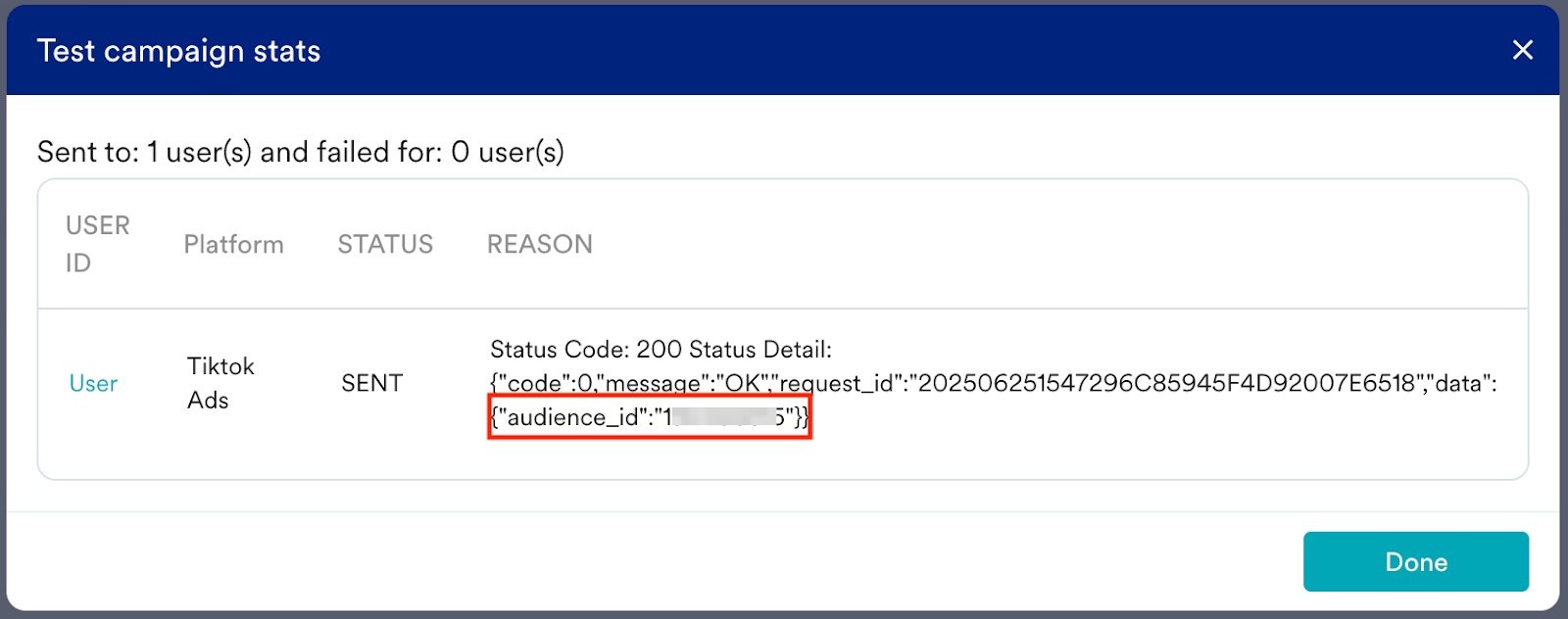
- From your Audience list , copy the Audience ID for the new audience you created.
Note: This ID is required to sync users to this audience from MoEngage. You can always find this ID by navigating to your Audience list in TikTok Ads Manager.
- Create Audience Segment
- Update Audience Segment
- Your campaign is now ready to be tested and sent to your audience. Using the Test functionality, you can also test your connector configuration.
 If your test user successfully receives the message, your setup is ready.
 - Publish the campaign.
Step 4: View Your TikTok Ads Audience Segments
In your TikTok Ads Manager account, select Audience > Audience Manager to view your audiences. The size of each audience is visible on the Audiences page after it reaches approximately 1,000.TikTok processes ID updates asynchronously. Therefore, it takes 48 hours for the audience size to be updated.