

Sender Configuration
To configure a Sender from Karix on the MoEngage Dashboard, do the following:- Go to Settings->WhatsApp->Sender Configuration.
- Choose Karix from the left menu and click on + Sender
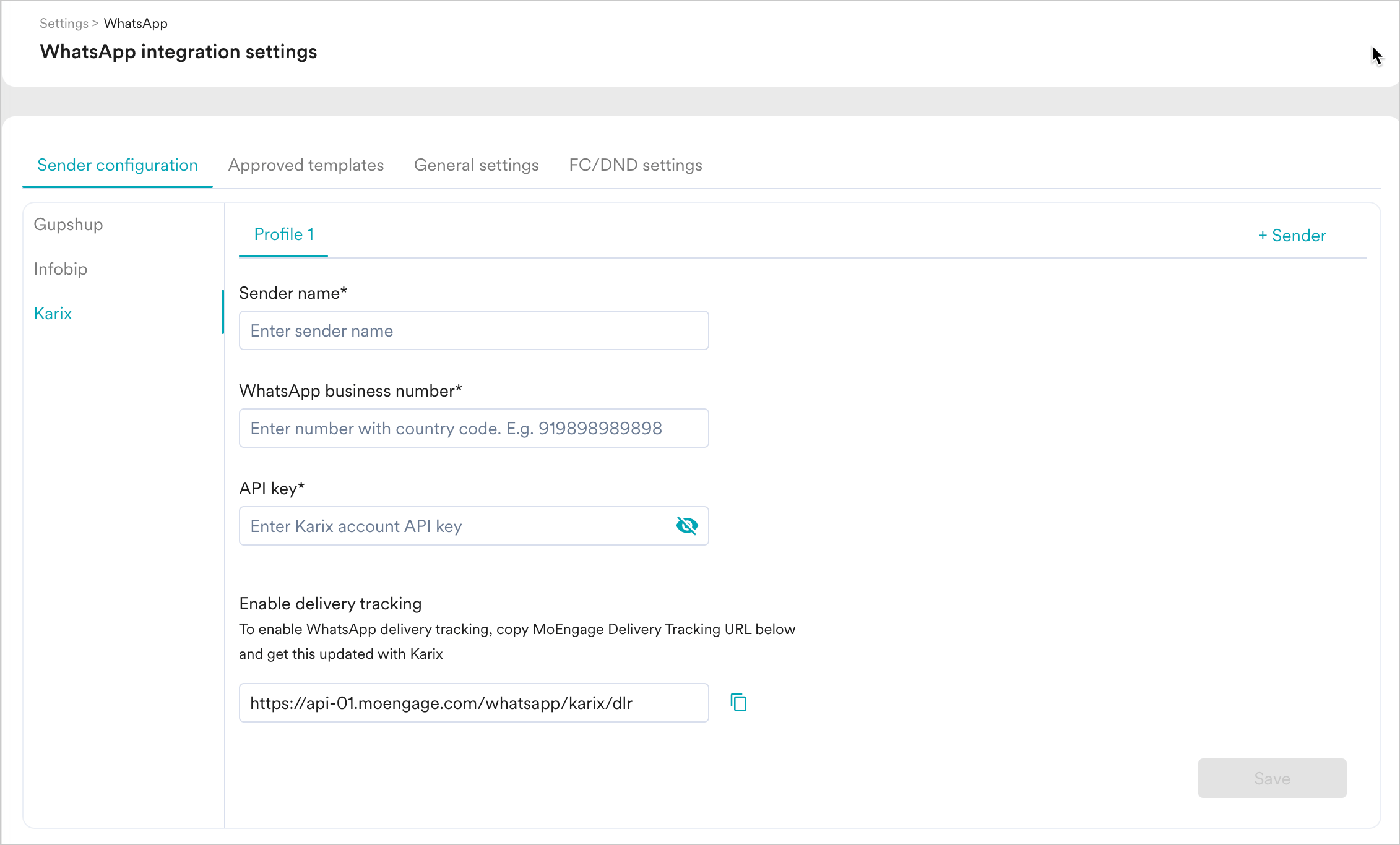
- Add the following details:
Delivery Tracking
To track the delivery of your WhatsApp Messages inside MoEngage, you would need to copy MoEngage Delivery Tracking URL and share it with Karix and get it updated on their side. You should be able to see the URL as shown below: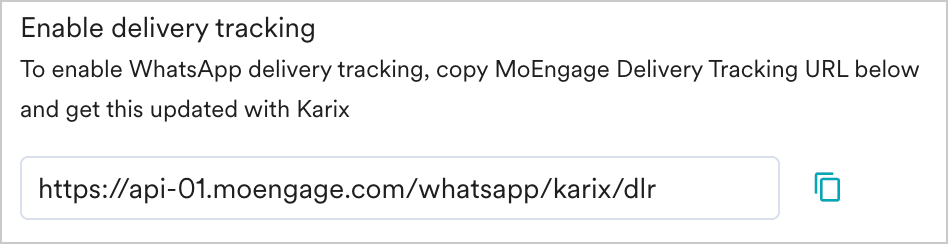
The URL is a sample URL. Copy the exact URL from your MoEngage Dashboard before you share it with the Karix team.
Steps to add Delivery Tracking URL
- Login to your Karix account and go to the WhatsApp Campaign section.
- Navigate to the Webhook Configuration section from the left menu.
- Select the WABA account and choose the Delivery Rule option.
- Paste the following URL in the URL field as shown below.
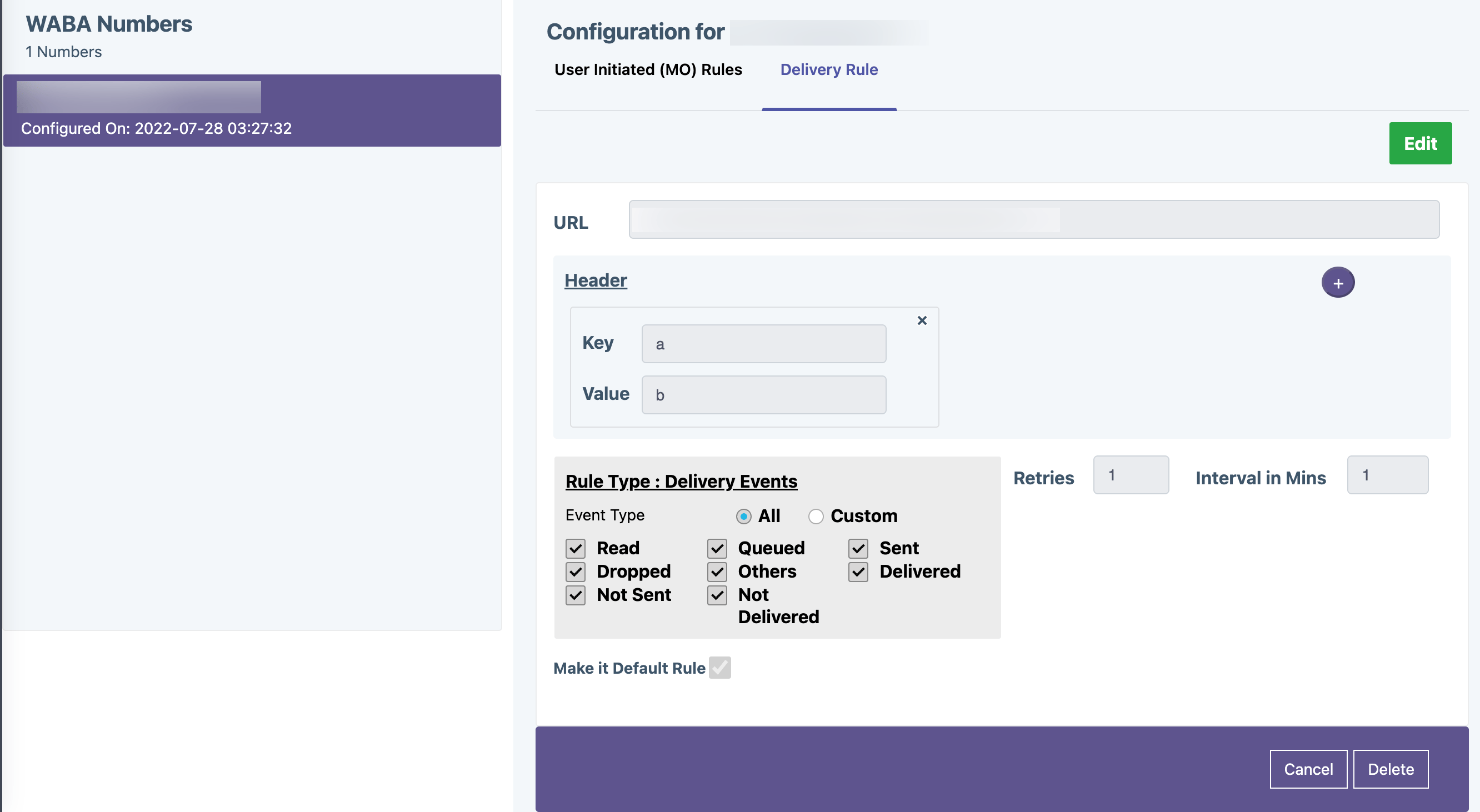
- Login to your Karix account and go to the WhatsApp Campaign section.
- Navigate to the Webhook Configuration section from the left menu.
- Select the WABA account and choose the User Initiated (MO) Rules option.
- Paste the following URL in the URL field as shown below.
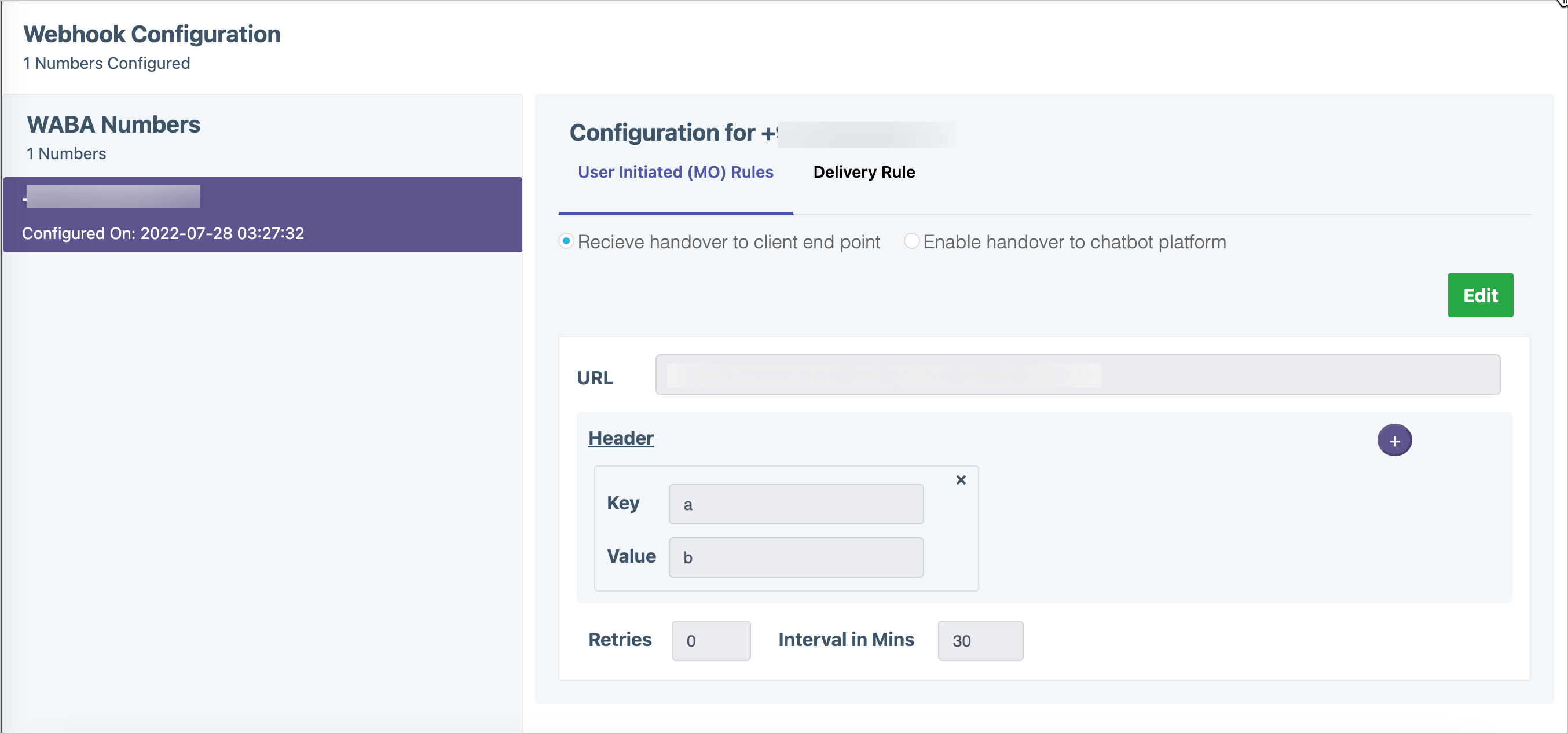
- You should have pre-approved templates with Karix to create a WhatsApp campaign for a Karix Sender in MoEngage. You can create templates in Karix by selecting the Template Management option in the left menu in Karix Template Management.
- You can create the same template verbatim in MoEngage. For more information, refer to Add Templates.